

AI Chat Onboarding Tips and Tricks
Top 5 steps to onboard AI Chat in your organization
We know your time is valuable. The following roadmap should provide an overview of the steps involved with onboarding (adding) the app as your AI chat based service desk. Please contact us with any questions - or custom requirements.
Sign Up For Chime V5 Evaluation
The chat service is an enterprise AI chat application that includes a knowledge base and AI features. Follow the these steps to register for a free evaluation:
Navigate to the evaluation page in ChimeV5.com.
Fill out the evaluation form.
Click the submit button.
Await a confirmation email from us.
Respond to the questions in the confirmation email.
We will create a tenant environment upon receiving your reply.
Receive your tenant environment account details via email.
Getting Connected - Authorize Your O365 Tenant
This section is intended for admin and Azure AD admin.
Upon completing your sign-up, we will send you an email containing your tenant URL (organization URL) and admin account details.
Following this, the next step involves configuring Azure AD Authentication, which enables you to use your Office 365 account for authentication.
The process to enable Azure AD Authentication consists of these steps:
Our team will reach out to you via email to request your Azure Tenant ID.
After we receive your Tenant ID, we will proceed to set up the Azure AD/Entra Authentication for your tenant alongside an Azure Admin from your organization.
For additional details on this, please see our Onboarding Technical Documentation page.
Once the setup of your Tenant ID is complete, your login page will be updated to include an Office 365 authentication button.
View fullsize 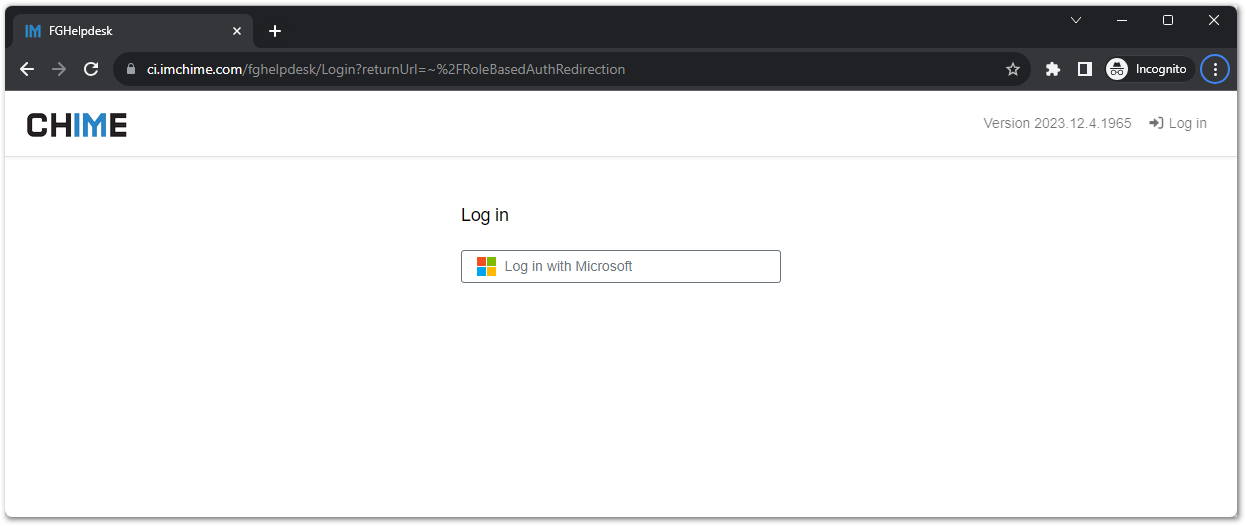
How to Install the Teams App
For details on how to install the app on Microsoft Teams, please follow the following instructions.
Onboarding by User Role
Admin Dashboard
Update Tenant Branding
Add Managers and Agents
Assist with Manager and Agent Onboarding

Plan out Project Timeline
Initial Configuration
(Optional) Pilot Testing
Deploy the app to Org

Agent Dashboard
Availability
Accepting a Chat Session
Agent Web Client Tools

Install the app on Microsoft Teams Apps
Starting a Chat In Teams
Starting a Chat in Web

Manager Dashboard
Onboarding agents
Reporting
User Management

Azure Admin Approves O365 Login
Teams Admin Approves the Application
Teams Admin Deploys the Application
Useful Tasks
| Action Item | Description | Link |
|---|---|---|
| Add (invite) agents/managers | Invite new team members to operate as support agents or support managers | Open |
| Create or update FAQs | Learn about FAQ features | Open |
| Connect with your ticketing system | Integrate your customer support ticketing system for streamlined operations | Open |
| Start a chat from your MS Teams client | Initiate chat conversations directly from Microsoft Teams | Open |
| Start a chat from the chat client | Begin chat sessions using the dedicated chat client interface | Open |
| View some reports | Access and analyze performance and activity reports | Open |
| Enable ChatGPT chat connection | Integrate ChatGPT for AI-powered chat support | Open |