
Jira Chat Ticketing Details and Configuration Steps
Connect Chat To Jira Ticketing Using Instant Chime
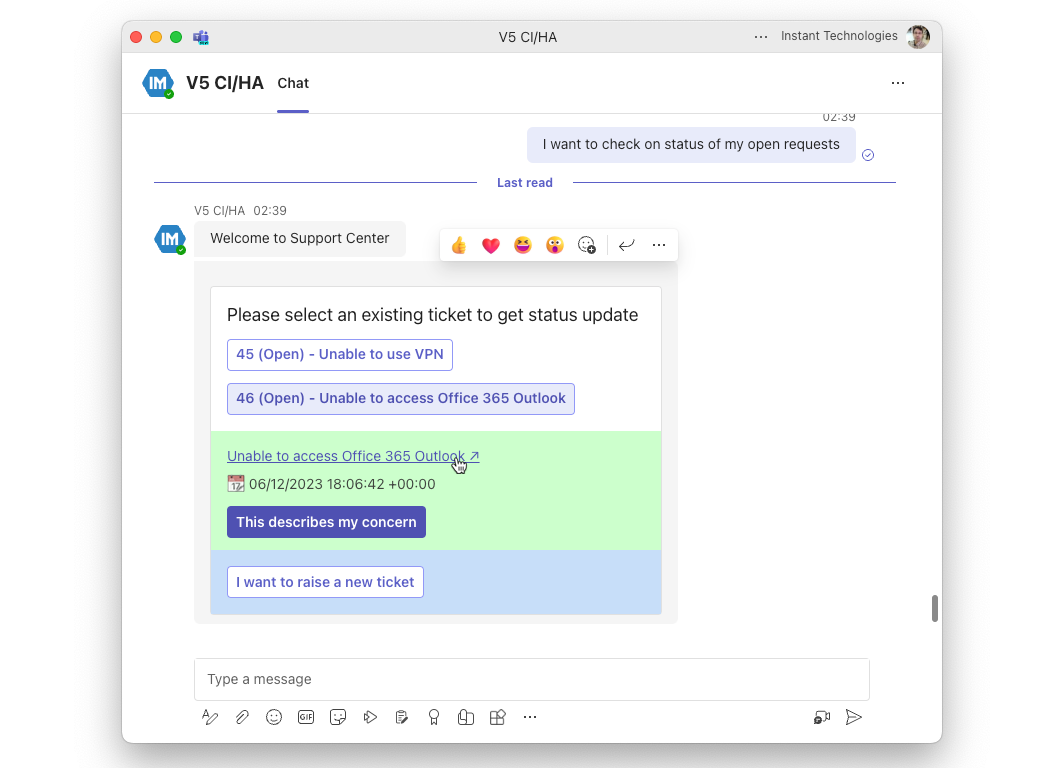
The Jira ticketing feature within Chime aims to provide Jira integration for your employees or end users in a seamless way through Microsoft Teams. The ticketing integration provides users information on existing tickets they have open, gives them the option to update tickets, create new tickets, or get help from a live service representative who can see additional information about tickets the end user has raised.
Supported Features
Here are the set of features that are provided out of the box with Jira ticketing integration:
End User
List out tickets to the end user during the chat session
View the details of any listed tickets
Open ticket details in your web browser
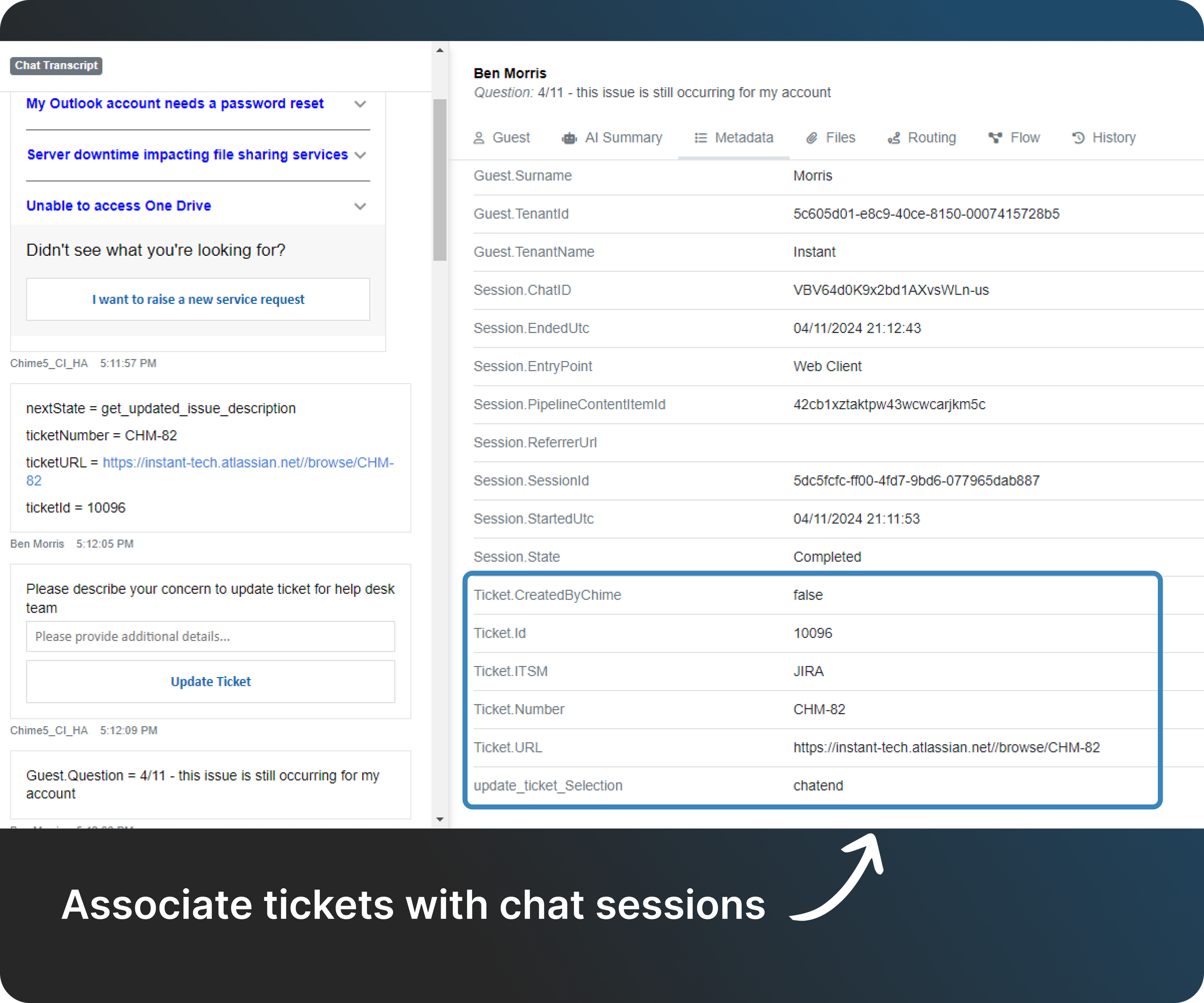
Update existing ticket description
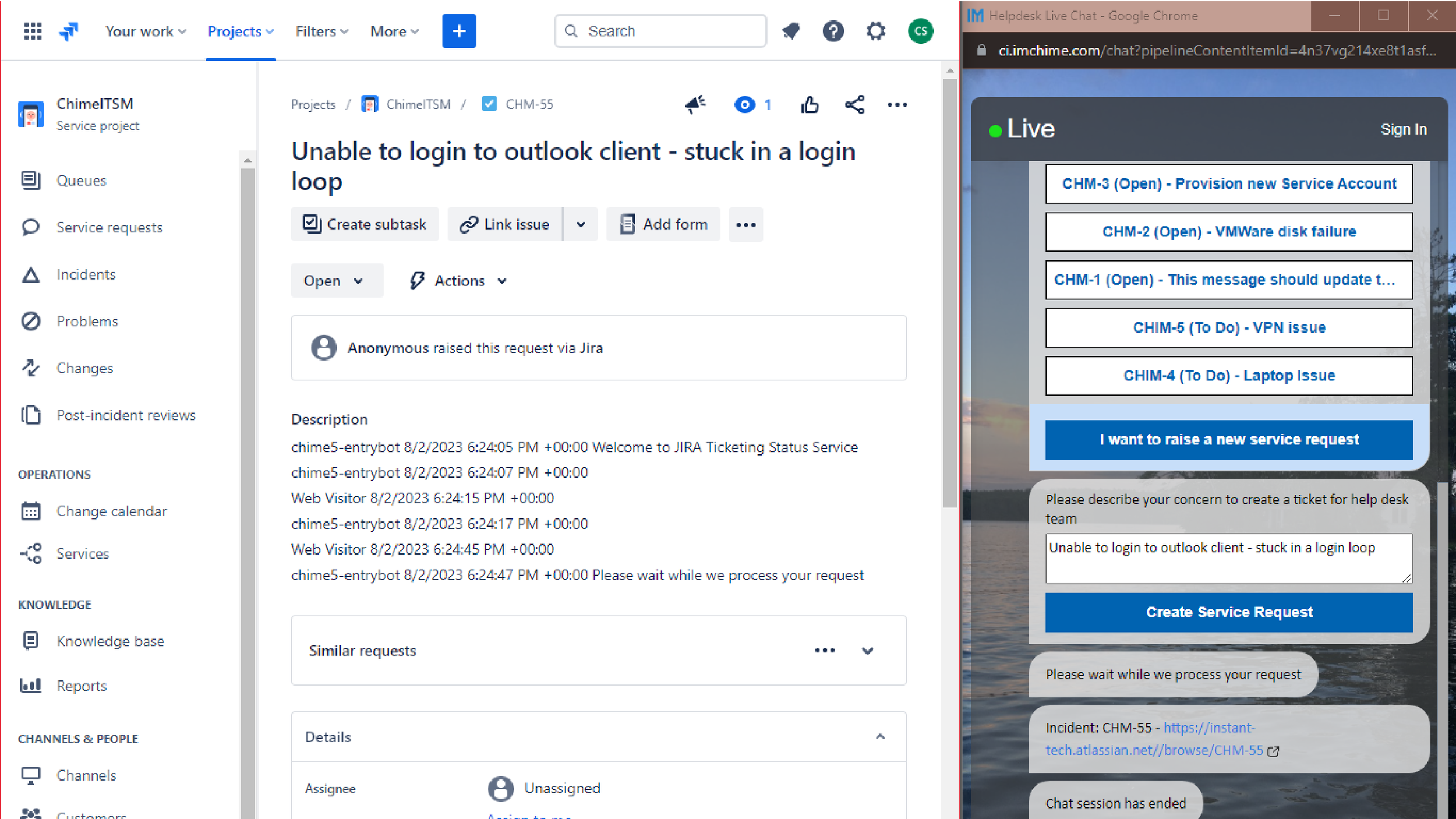
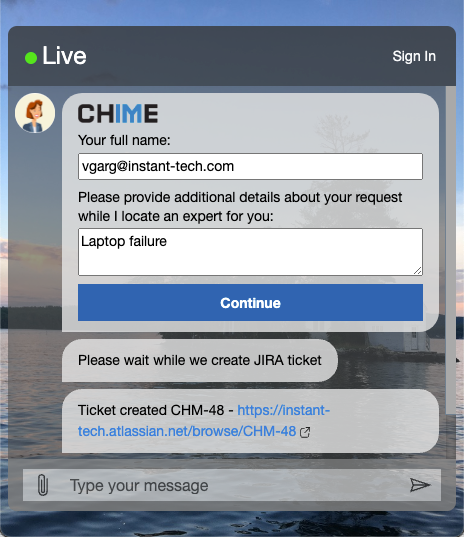
Create new tickets
Agent
View ticket details
Open ticket in web browser
Manager
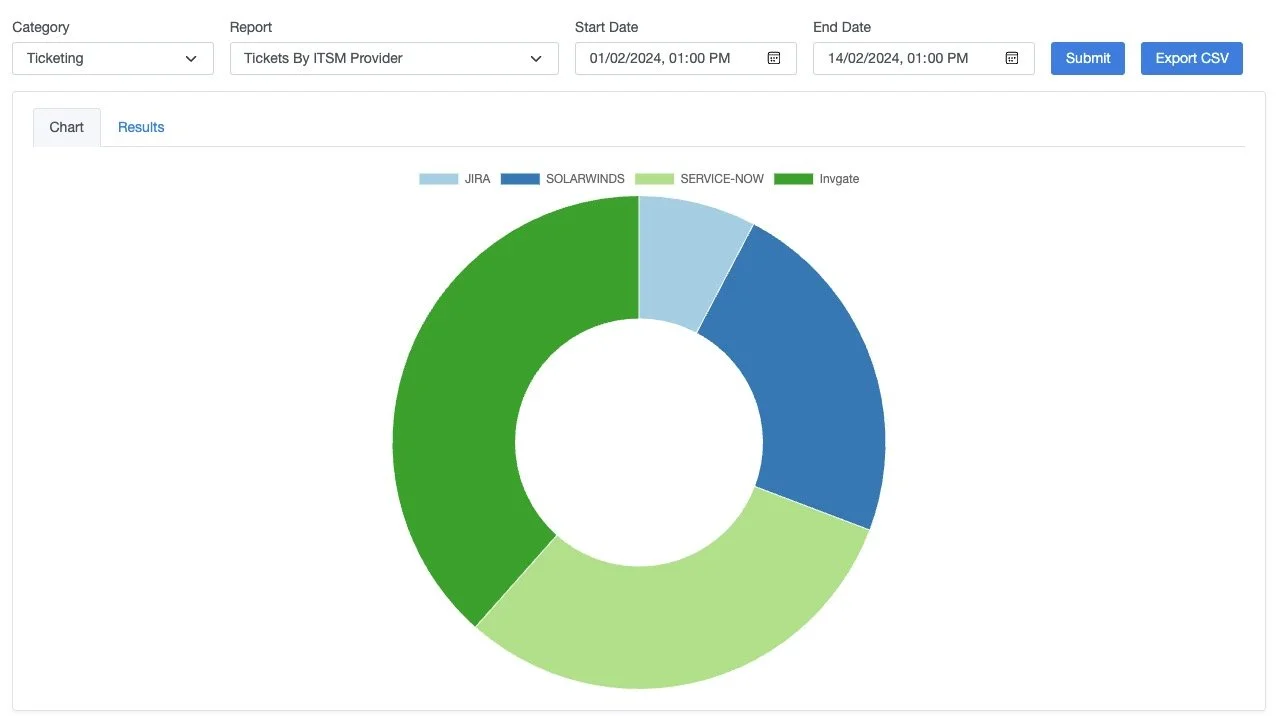
Reports for ticketing
Inbound Guests for New vs Existing Tickets (Bar)
New Tickets Over Time (Line)
Ticketing Basic Details (Table)
Tickets By ITSM Provider (Doughnut)
Jira Ticketing Setup Steps
To integrate Chime V5 with your Atlassian JIRA instance following details are required:
JIRA instance URL - (e.g. https://domain-name.atlassian.net)
Service account username
API token for service account
Create Service Account in Atlassian JIRA
Steps to create Atlassian JIRA Service Account are as follows:
Login to your JIRA instance with an account which has User Management rights
Select Administration > User Management
Select Invite Users
Enter the email address of the Service Account that you want to create
Select the Send button to send the invitation
Follow the steps sent across in email to provision Atlassian JIRA Service Account
Assign service account agent role
View fullsize 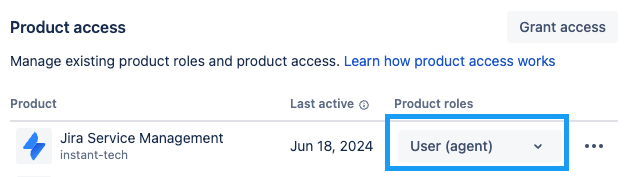
Create an API token for Atlassian JIRA Service Account
Steps to create API token are as follows:
Log in to https://id.atlassian.com/manage-profile/security/api-tokens with Service Account credentials
Click Create API token
View fullsize 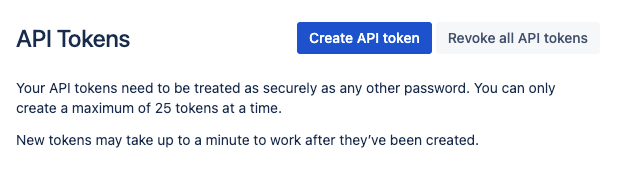
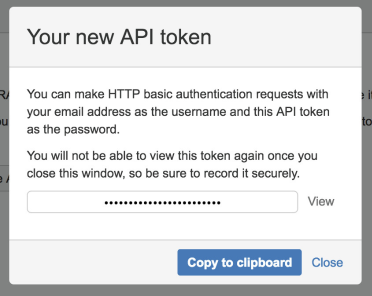
From the dialog that appears, enter a memorable and concise Label for your token and click Create
Save generated token
JIRA technote (for reference) - https://support.atlassian.com/atlassian-account/docs/manage-api-tokens-for-your-atlassian-account/
Update Chime V5 Configuration
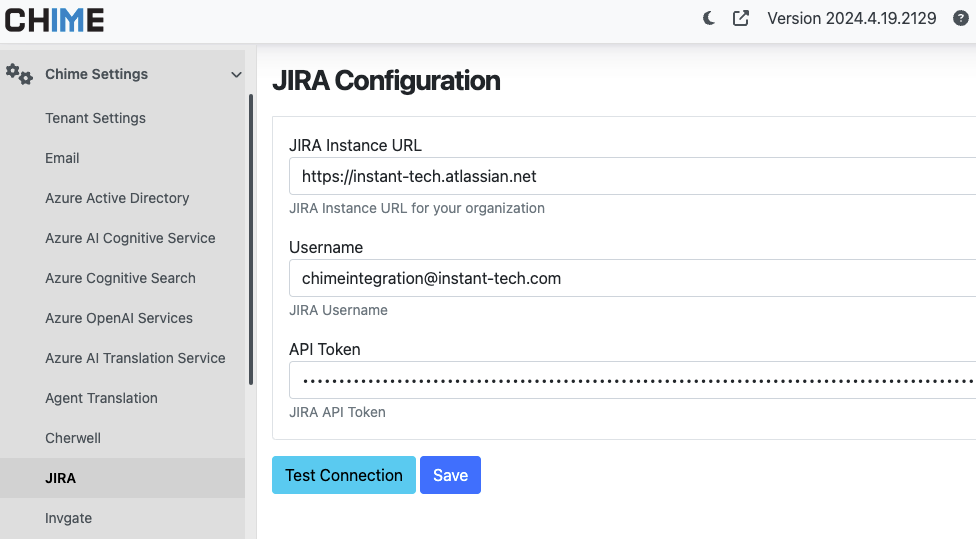
Navigate to Admin > Chime Settings > JIRA section
Input credentials for Jira instance URL, service account username, and the API token you generated
Click the Test Connection button and verify the credentials successfully can authenticate
Click the Save button to finish the Jira setup.
Screenshot Gallery
Additional Resources
To learn more about setting up Jira ticketing we have created helpful guides that walk through the steps needed to set up a service account in Jira, connect it to Chime, integrate it into your chat workflow and provide the end user a great experience.
Chime Resources
FAQ on creating a Jira service account and Chime basic Jira configuration
Improve Service Desk Support Chat with JIRA Ticketing Integration
Setting up the Jira workflow in Chime
How to show end users Jira tickets in chat sessions
How to use pipeline action: Evaluate JavaScript for accessing JIRA Tickets
Import and view ticketing metric reports for Chime
Jira Resources
Creating a Jira Service Account with Groups and Permission Schemes for Jira Align